For the thousands of hospitality venues already using Square POS, the question isn't whether to adopt QR ordering. The real question is how to integrate it without disrupting the systems and workflows that already work.
Why a Direct Square QR Ordering Integration Matters
A QR ordering system that doesn't integrate with your POS creates more problems than it solves. Without integration, you end up with:
- Two separate systems: Orders on the QR platform and orders on the POS don't talk to each other. Staff need to monitor two screens.
- Split reporting: Your sales data is fragmented across platforms, making it impossible to get a complete picture of your day's performance.
- Manual order entry: Staff may need to re-enter QR orders into the POS manually, which defeats the purpose of automation.
- Payment reconciliation headaches: Revenue from QR orders sits in a different merchant account, requiring manual reconciliation.
How Direct Square Integration Works
A direct Square POS integration means the QR ordering platform connects to your Square account via their official API. Here's what this enables:
Automatic Menu Sync
Your Square catalogue, which includes items, categories, modifiers, and prices, syncs automatically to the digital menu. When you update a price in Square, it updates on the QR menu. When you add a new item, it appears. No double-handling.
Orders Flow to Your Terminal
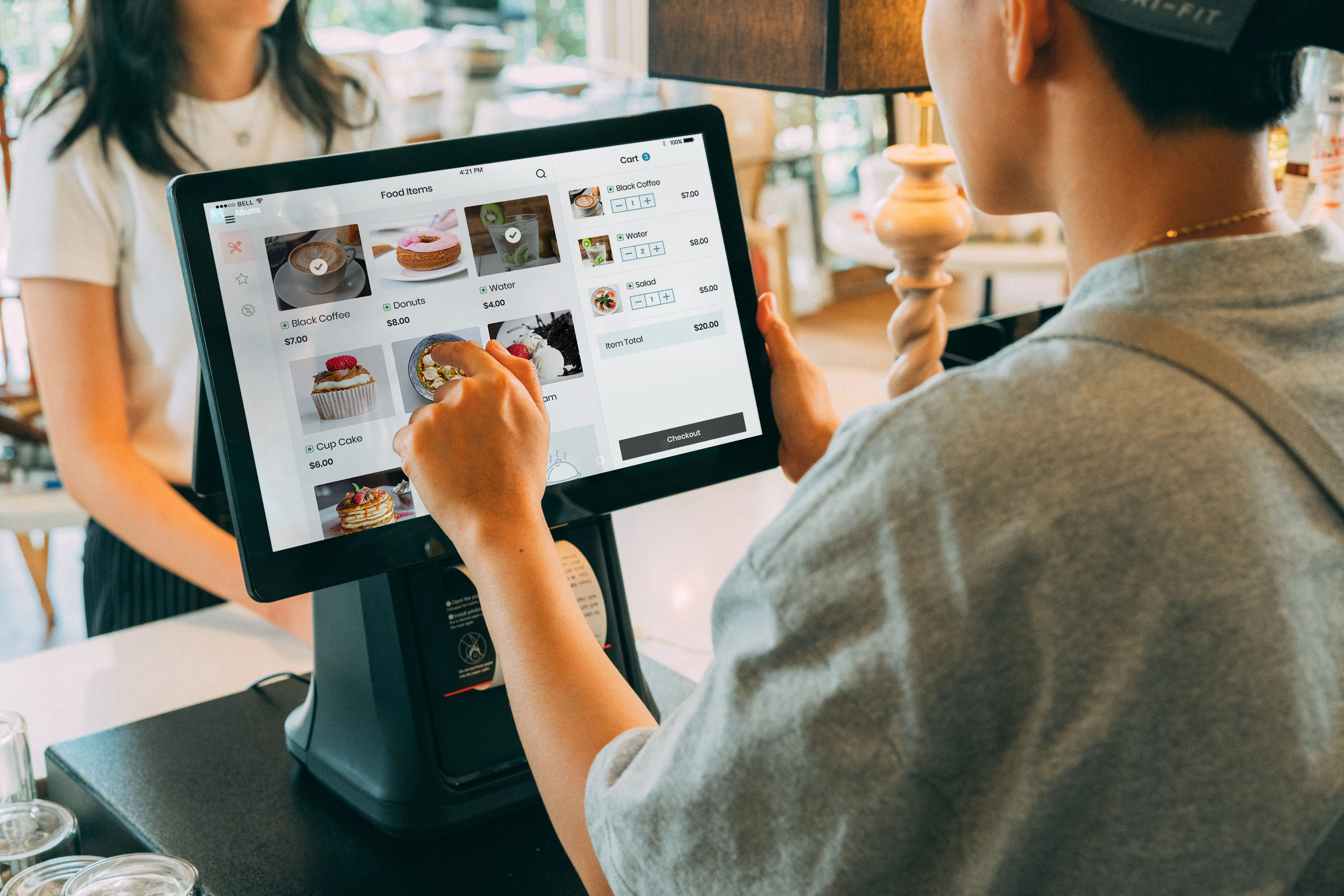
QR orders appear on your Square POS terminal exactly like counter orders. Same screen, same workflow, same ticket printer. Your kitchen doesn't need to learn a new system or check a separate tablet.
Payments Route to Your Square Account
Customer payments from QR orders deposit directly to your connected Square merchant balance. There's no middleman holding your funds, no separate payout schedule, and no revenue sitting in a third-party account.
Unified Reporting
All orders, including counter and QR transactions, appear in your Square Dashboard reports or Square analytics. You can see total daily revenue, item-level sales data, and peak-hour breakdowns in one place.
Troubleshooting & Optimisation for Square POS Integrations
To ensure your integration runs flawlessly during peak trading, review these critical setup recommendations:
1. Kitchen Ticket Layout and Routing
In your Square settings, configure how incoming digital orders are routed to your printers or Kitchen Display System (KDS). Ensure that orders tagged with external sources (like SpotTab) trigger kitchen tickets immediately. We recommend setting up a dedicated "Online Order" label category to help prep cooks instantly distinguish QR table orders from walk-in orders.
2. Matching Modifiers and Required Groups
If you have nested options in Square (e.g., choice of milk, meat temperature, or add-ons), verify that they are configured with correct maximum and minimum selection limits. If a modifier is "Required" in Square, it must be marked as "Required" on your digital menu, otherwise the POS will reject the incoming order payload.
3. Payment Reconciliation and Surcharges
Square maps transactions by tender types. In your integration dashboard, map your QR card sales to the correct payment type (usually marked as "Credit Card" or "Square Online"). If you pass processing surcharges to the customer, configure Square to accept custom tax/surcharge lines so your end-of-day balances match perfectly down to the cent.
Square Sync FAQs
Do I need to buy new hardware to use the Square integration?
No. The integration runs purely in the cloud. Incoming orders are pushed directly to your existing Square Register, Square Stand, or mobile terminal via the internet. No new printers, tablets, or routers are required.
Can I have different prices on my QR menu compared to my counter POS?
Yes. Most integrations allow you to set price overrides. You can import your base menu from Square and apply a flat percentage markup (e.g., +5% to cover table service costs) or set individual custom prices for table ordering while leaving your register prices unchanged.
What happens if my Square POS internet connection goes down?
If your local POS terminal loses Wi-Fi, it won't be able to receive incoming tickets instantly. However, the online ordering platform keeps running in the cloud. Payments are processed securely, and the orders are queued. The moment your terminal reconnects to the network, all pending orders sync and print automatically.
How does the KDS (Kitchen Display System) handle these orders?
Directly. If you use the Square KDS app on tablets in the kitchen, incoming QR orders appear as active tickets on the screen, color-coded based on wait time, identical to counter-entered tickets.
What to Watch Out For
"Integration" vs "Actual Integration"
Some platforms claim Square integration but actually just push orders to Square as separate line items, without respecting your existing catalogue structure. True integration means the platform uses your Square items, modifiers, and categories rather than duplicated versions.
Payment Routing
Ensure payments go directly to your Square merchant account, not to the platform's account first. Some platforms hold funds and batch-pay weekly, which creates cash flow delays and reconciliation complexity.
Inventory Sync
The best integrations include real-time inventory sync. When Square marks an item as out of stock, the QR menu reflects it immediately. Without this, you risk customers ordering items you can't deliver.
Setting Up Square + QR Ordering
With platforms designed for Square, setup takes under 30 minutes:
- Create an account and authorise the Square connection.
- Your menu imports automatically from your Square catalogue.
- Add photos and dietary tags to enhance the digital experience.
- Generate table QR codes and print them.
- Test an order, which should appear on your POS terminal within seconds.
From that point, every QR order flows through your existing Square workflow. There is no new hardware and no new processes, just an additional ordering channel that runs on autopilot.